Introduction
Introduction
You open the Ring app and see that gray “offline” icon, and suddenly you’re wondering if your camera even works anymore. Learning how to reconnect your Ring camera to WiFi is something almost every Ring owner deals with at some point, and the good news is it’s usually a quick fix, not a sign of a bigger problem. This guide walks through exactly how to reconnect your Ring camera to WiFi, plus a few overlooked reasons it keeps happening in the first place.
Table of Contents
Why Does a Ring Camera Lose Its WiFi Connection?
A Ring camera loses its WiFi connection almost always because something changed on your network, not because the camera itself is faulty. The four most common culprits are a new router, an updated WiFi password, a weak signal, or more than one router running on the same network at once.
Take a typical scenario: you switch internet providers, the technician sets up a new router with a different network name, and by the next morning three of your Ring cameras are showing offline. This happens because Ring cameras don’t automatically detect network changes the way a phone does — they stay locked onto the last network they were told to use, so once that network disappears, the camera has no way to reconnect on its own.
The most common reasons a Ring camera drops offline include:
- A new router or modem — replacing your internet hardware gives your home a new network name, and the camera keeps searching for the old one
- An updated WiFi password — the camera keeps trying the old credentials and fails silently until you notice the offline icon
- A weak or inconsistent signal — cameras placed more than 20-30 feet from the router, or behind brick walls, metal doors, or large appliances, are prone to dropping out after any minor disruption
- Multiple routers on one network — leftover old routers or improperly configured mesh extenders broadcast overlapping signals, confusing the camera about which one to connect to
Signal strength is often overlooked because the camera may have worked fine for months before suddenly dropping off. A brief power outage or a simple router restart can be enough to expose a weak connection that was barely holding on before.
Multiple routers cause a subtler version of the same problem. This is common in homes that upgraded their internet setup but left the old router plugged in, or added a mesh extender without properly configuring it. In these cases, the camera can appear to reconnect briefly, then drop again a few minutes later, cycling on and off.
Understanding which of these causes applies to your situation is the first step to fixing it — and it also matters if you’re troubleshooting other connected devices, since the same network issues that disconnect a Ring camera often affect other wireless outdoor security cameras at the same time.
How to Reconnect a Ring Camera Through the Ring App
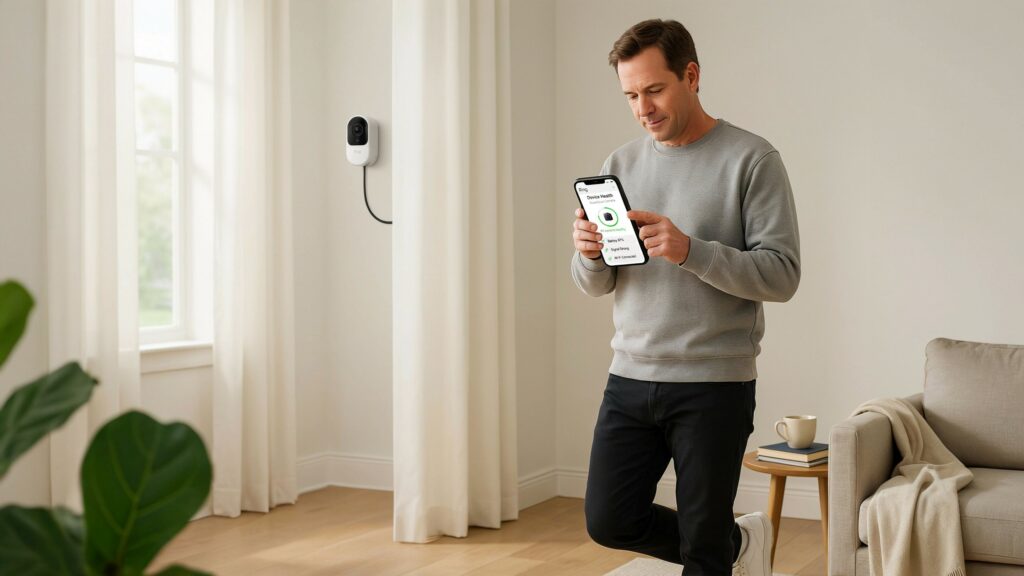
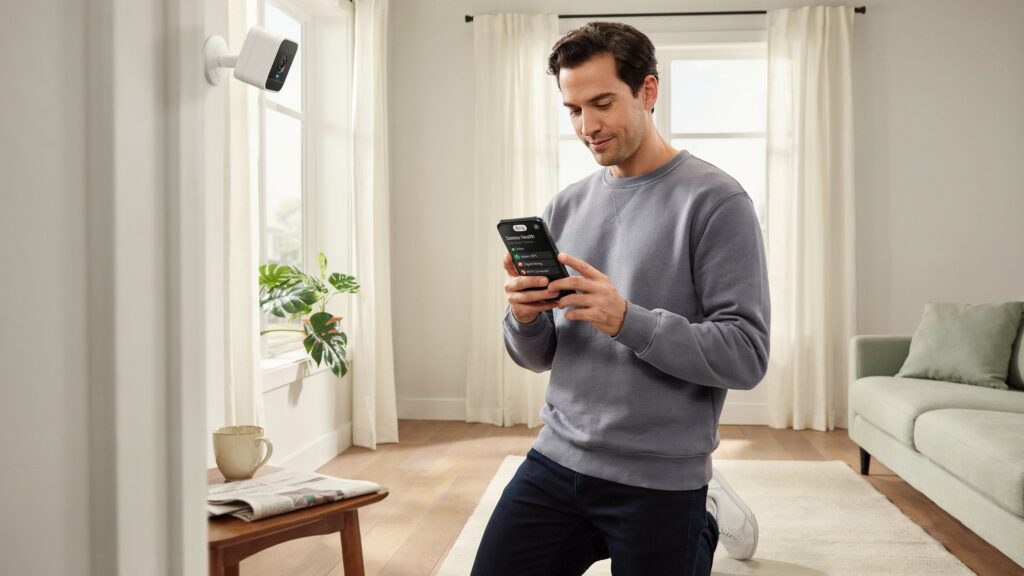
The fastest way to reconnect a Ring camera to WiFi is through the app’s Device Health page, and it works whether you’re reconnecting to the same network or switching to a completely new one. Most users can fix an offline camera this way in under two minutes, without touching the camera itself.
Open the Ring app and tap the menu icon in the top corner, then select Devices and choose the camera showing as offline. From there, tap the Device Health tile, which shows the camera’s current signal strength and network status. Look for Reconnect to WiFi or Change WiFi Network — the option that appears depends on whether you’re reconnecting to a network the camera already knows or moving it to a new one entirely.
Once you tap that option, enter your WiFi network name and password exactly as your router displays them. This step trips people up more often than expected, since WiFi passwords are case-sensitive, and a single mismatched letter or missed symbol is enough to make the reconnect attempt fail. After entering the correct credentials, give the camera 60 to 90 seconds to complete the handshake. You’ll know it worked when the status light on the camera turns solid and the Device Health page updates to show it back online.
This method works for Ring doorbells, indoor cameras, and outdoor cameras alike, and it’s the same process whether you have one device or several. If you’re reconnecting multiple cameras after a router change, you’ll need to repeat these steps for each device individually, since the app doesn’t currently offer a way to reconnect all devices in one action.
If your camera doesn’t show a reconnect option at all on the Device Health page, that’s a different issue with its own fix, which we’ll cover next. And if you’re building out a full setup with multiple devices, our guide on Ring Home Standard Alarm Monitoring walks through how these cameras tie into a complete monitored system.
What to Do When “Reconnect to WiFi” Doesn’t Appear
If the Device Health page won’t show a reconnect option at all, the fix isn’t in the network settings — it’s in how the app itself is reading your camera’s status. This trips up a fair number of Ring owners, since every guide assumes the button is just sitting there waiting to be tapped, and when it isn’t, the whole process stalls before it even starts.
Why the Option Goes Missing
This usually comes down to one of two things. Either the app still thinks the camera is online, even though it clearly isn’t, or the camera was originally set up under a different Ring account than the one you’re currently signed into. Both situations are common after a household changes accounts, shares devices between family members, or simply hasn’t opened the app in a while and it’s showing outdated status information.
How to Fix It
Try these steps in order:
- Force-close and reopen the Ring app. A simple refresh clears outdated status data more often than people expect, and the reconnect option frequently reappears within seconds.
- Check that you’re logged into the correct account. If the camera was set up by someone else, or under a shared or previous account, you won’t see network controls for it until it’s transferred or you’re logged in as the original owner.
- Clear the device and rebuild its setup from your account. Head to Devices > Device Health > Remove This Device. This wipes the camera’s saved network link without touching its full factory settings, so you can immediately walk through setup again using your current WiFi name and password.
That distinction matters here: this step only resets the camera’s network profile inside the app, nothing else. Your recordings, subscription, and account settings stay exactly as they were — the app simply treats the camera as a fresh setup, which is precisely what brings the reconnect screen back.
If none of these steps bring back the option, the camera itself may need a hardware reset, which we’ll walk through next. And if you’re managing several Ring devices across one household, our guide on wireless outdoor security cameras that work with Alexa covers how to keep multiple devices organized under a single, consistent setup.
How to Manually Reset Your Ring Camera and Set It Up From Scratch
When the app-based fix doesn’t work, or your camera doesn’t respond to any reconnect attempt, a manual reset clears its stored network settings and lets you set it up as if it were brand new. This is the method to use once you’ve ruled out simpler options, and it resolves the majority of stubborn cases where a Ring camera keeps trying to reach a network that no longer exists.
A manual reset works differently from removing the device inside the app. Rather than just clearing account-side status, it physically erases the camera’s saved WiFi credentials — which matters if the camera was last connected to a router that’s since been unplugged or swapped out entirely. According to Ring’s own support documentation on fixing offline devices, network changes are one of the most frequent reasons a device needs this kind of reset. Say your home switched internet providers three months ago, but one camera never got properly reconnected and has just been sitting offline since — a manual reset is usually the cleanest way to bring it back, since there’s no leftover network data left to conflict with the new setup.
Steps to Manually Reset Your Ring Camera
- Find the setup button. On most Ring camera models, it sits recessed into the back or side panel, and you’ll usually need a paperclip or SIM tool to press it in.
- Hold it down for 15 to 20 seconds. Once the front light starts flashing, that’s your signal the reset has kicked in.
- Wait for the reset to complete. The light may cycle through a few different patterns before settling, which typically takes under a minute.
- Open the Ring app and start setup again. Go through the standard device setup process exactly as you would for a new camera, entering your current WiFi network name and password when prompted.
- Confirm the connection. Once setup finishes, check the Device Health page to make sure the camera shows as online and connected to the correct network.
One detail worth knowing: a manual reset doesn’t remove the camera from your Ring account or affect your existing recordings and subscription. It only clears the device’s network memory, so you won’t lose any history by doing this.
If the camera still won’t reconnect after a full reset, the issue is likely tied to your router setup rather than the camera itself, which we’ll cover in the next section. For homes running a full security setup with multiple devices, our guide on Ring Home Standard Alarm Monitoring is a useful next step once every camera is back online.
Real-World Scenario: Switching Internet Providers Without Losing Your Cameras
The easiest way to avoid reconnecting every Ring camera after switching internet providers is to keep your new router’s network name and password identical to your old one. When that’s possible, most Ring devices rejoin the network automatically, without needing to touch the app at all.
We see this situation come up constantly with homeowners upgrading from cable to fiber, or switching providers to get a better rate. The technician shows up, installs a new router, and by default it comes with a fresh network name and password. A few hours later, the homeowner opens the Ring app and finds three or four cameras all showing offline at once — not because anything is broken, but because every device on the property was still looking for a network that technically no longer exists.
Here’s the part most people don’t realize until it’s too late: nearly every modern router, including the ones provided by major U.S. internet providers, lets you manually set the network name (SSID) and password during setup. If you tell your technician, or set it yourself through the router’s admin page, to match your previous network exactly, every Ring camera on the property reconnects on its own within a few minutes.
What matching your old network name gets you:
- No individual reconnects. Every Ring camera, video doorbell, and smart device rejoins automatically, instead of needing the app’s Device Health process one device at a time.
- No downtime in your recording history. Cameras stay active through the switch instead of sitting offline for hours while you work through each one.
- Less setup for larger homes. A single camera reconnecting manually is a two-minute task, but a home with five or six Ring devices, a doorbell, and smart lights turns into a much longer afternoon without this shortcut.
If keeping the same network name isn’t an option, whether due to a requirement from your new provider or a decision to upgrade your WiFi setup entirely, plan on reconnecting each Ring camera individually using the app method covered earlier in this guide. It’s worth doing this soon after the switch rather than letting cameras sit offline, since gaps in your Ring camera’s recording history mean gaps in your home’s actual security coverage during that window.
For households running a broader security setup alongside their cameras, our guide on wireless outdoor security cameras that work with Alexa covers how to keep every device working together after a network change like this.
Why 2.4GHz vs 5GHz Matters When Reconnecting
Most Ring cameras only connect to 2.4GHz WiFi, not 5GHz, and this single detail causes more failed reconnects than almost any other issue on this list. If your router broadcasts both bands under one network name, your phone may happily connect on 5GHz while your camera is left searching for a 2.4GHz signal it can’t see.
This mismatch is easy to miss because everything else in your home seems to be working fine. Your phone, laptop, and smart TV all connect without issue since they support both bands, so the problem looks like it’s isolated to the Ring camera specifically. In reality, it’s a band compatibility gap, not a camera malfunction.
Quick ways to check and fix this:
- Check your router settings to see if your 2.4GHz and 5GHz networks are combined under one name or listed separately.
- Split the bands into two distinct network names if your router allows it, so you can select the correct one during setup.
- Choose the 2.4GHz network specifically when reconnecting your Ring camera through the app, rather than whichever network your phone defaults to.
Getting this right the first time saves you from repeating the entire reconnect process over a detail that has nothing to do with your camera, your password, or your signal strength. As Ring’s own troubleshooting documentation explains, most Ring products need a 2.4GHz network specifically, and a router broadcasting only 5GHz will prevent setup from completing at all.
How to Fix a Ring Camera That Still Won’t Reconnect
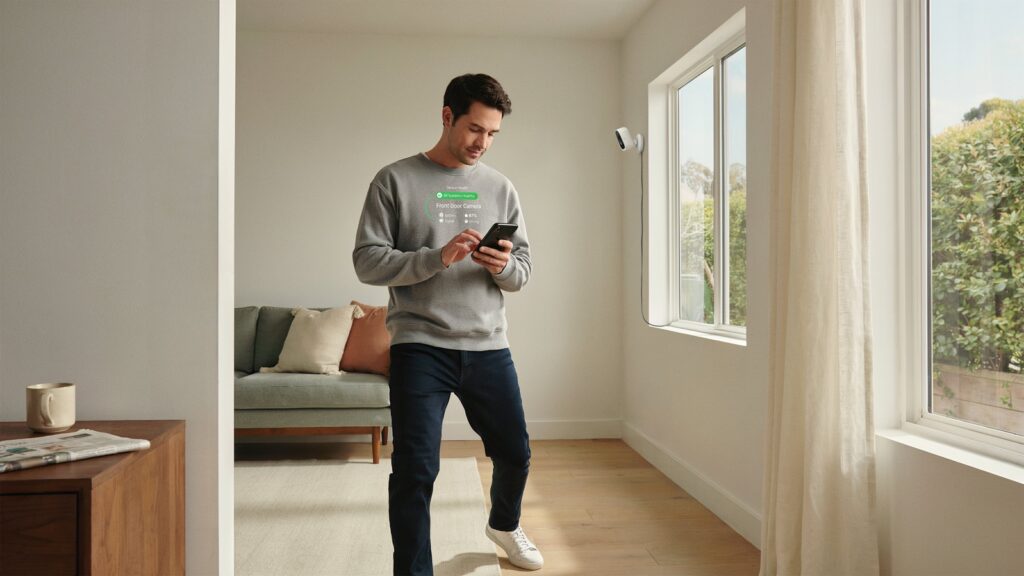
If you’ve tried the app method and a manual reset and your Ring camera is still offline, the problem is almost always tied to something at the network level rather than the camera itself. Three causes explain most of these stubborn cases: leftover routers, physical distance, and outdated firmware.
Multiple Routers on the Same Network
A common scenario is a home that upgraded its internet setup but left the old router plugged in somewhere, or added a mesh extender without fully removing the original router from the network. When two devices broadcast overlapping signals, your Ring camera can bounce between them, appearing to reconnect briefly before dropping again within minutes. Unplugging the extra router, or fully replacing it rather than running both, usually resolves this immediately.
Distance and Physical Obstructions
WiFi signal drops off quickly with distance and thick materials in the way. A camera sitting a room or two beyond your router, or blocked by brick walls, metal doors, or large appliances, may simply never hold a connection steady enough to finish reconnecting. If your camera is mounted near the edge of your property, try shifting it a few feet closer to your router first — that alone often clears up what looks like a bigger problem.
Outdated Router Firmware
Routers running old firmware sometimes struggle to maintain stable connections with smart home devices like Ring cameras, even when the WiFi credentials are entered correctly. Checking your router’s admin page or manufacturer app for a pending update takes about five minutes and resolves connectivity issues that otherwise look unexplainable.
Working through these three areas covers nearly every remaining case where a Ring camera won’t reconnect after the standard steps. If you’re troubleshooting a full camera setup rather than a single device, our guide on Ring Home Standard Alarm Monitoring is a useful reference for keeping an entire system running reliably.
How to Keep Your Ring Camera From Disconnecting Again
The best way to prevent another Ring camera reconnect is to change fewer things about your network, and update your devices immediately when you do. Most repeat disconnections trace back to the same handful of habits, so fixing them once tends to solve the problem for good.
If you need to change your WiFi password, update your Ring camera the same day rather than letting it sit disconnected for a few days “until you get around to it.” Keep your router’s firmware current, since outdated firmware is one of the most common hidden causes of dropped connections across smart home devices generally, not just Ring. If your home uses multiple access points or a mesh system, make sure they’re configured to hand off devices smoothly rather than competing for the same connection, and keep your camera within strong, consistent signal range instead of at the edge of coverage.
A few small habits go a long way:
- Reconnect Ring devices right away whenever you change your router or WiFi password — don’t leave it for later
- Keep router firmware current through regular checks in the manufacturer’s app
- Position cameras within solid signal range, not at the outer edge of your WiFi coverage
- Avoid running old and new routers together after any upgrade
Following these habits means fewer offline alerts and a Ring camera that stays reliably connected long after the initial setup. For a broader look at building a dependable home security network, our guide on wireless outdoor security cameras that work with Alexa covers how to keep every connected device running smoothly together.
Final Thoughts
A disconnected Ring camera can feel like a bigger problem than it actually is, but the fix is usually just a few taps in the app. What matters more is what you do afterward: matching network names when you upgrade your router, updating passwords right away, and keeping firmware current. These small, consistent habits are what keep your cameras online and your home covered when it really counts.
FAQs
Why is my Ring offline and won’t reconnect?
Your Ring camera usually goes offline because of a router change, an updated WiFi password, or a weak signal — not a device failure. Reconnecting through the app’s Device Health page resolves most cases within minutes.
Does Ring automatically reconnect to WiFi?
Ring devices don’t automatically reconnect if your network name or password changes, since they stay locked onto the last network they were set up with. You’ll need to manually reconnect through the app when that happens.
Why is my camera not connecting to my WiFi?
This is often caused by a 2.4GHz vs 5GHz mismatch, since most Ring cameras only support 2.4GHz networks. Weak signal strength or incorrect WiFi credentials are the other common causes.
How do I reboot my Ring camera?
For battery-powered models, remove and reinsert the battery; for wired models, unplug the power source for about 30 seconds, then reconnect it. This clears minor glitches without affecting your saved settings.
Where is the Ring reset button?
Most Ring cameras have a small recessed setup button on the back or side of the device, often requiring a paperclip or SIM tool to press. Its exact position varies slightly by model.
Does Ring have a hard reset option?
Yes, pressing and holding the setup button for 15 to 20 seconds until the light flashes performs a full reset, clearing all saved network settings. You’ll need to set the camera up again afterward like a new device.
About This Guide
This guide was put together by the CrimTechHub team, where home security troubleshooting and smart device setup are covered regularly for a U.S. audience. Our approach is grounded in a criminology background, which shapes how we think about home security not just as a tech problem, but as part of keeping a property genuinely protected — a disconnected camera isn’t just an inconvenience, it’s a gap in coverage. Every guide on this site is written and reviewed with that context in mind, focusing on practical, tested fixes rather than generic troubleshooting steps copied from one article to the next.